Andrew
Apple’s Find My iPhone feature is essential for locating lost devices, protecting data, and deterring theft. However, there are situations where users need to turn off Find My iPhone, such as preparing the device for resale, troubleshooting, or restoring it. Understanding the correct method is crucial because improper deactivation can lead to issues with device activation, security, or iCloud features.
Find My iPhone is deeply integrated into Apple’s ecosystem and requires an Apple ID and password to disable. This integration prevents unauthorized access, ensuring your device remains protected. However, Apple provides multiple ways to turn off the feature safely, including using another device, computer, iCloud, or even when the iPhone is not physically present.
This comprehensive guide explains every method with clear steps, precautions, and troubleshooting tips, ensuring users can confidently manage their device while maintaining security.
Understanding Find My iPhone and Why You Might Turn It Off
Before deactivating Find My iPhone, it’s important to understand its purpose and implications. The feature is part of Apple’s iCloud security system, designed to locate, lock, or erase your device remotely if lost or stolen.
Turning off Find My iPhone disables Activation Lock, which is required when selling, gifting, or restoring an iPhone. Without proper deactivation, the next user may not access the device. Additionally, turning off the feature may be necessary for repairs or troubleshooting certain iOS issues.
Understanding these reasons ensures that users approach deactivation responsibly, avoiding potential lockouts or loss of data.
How to Turn Off Find My iPhone From Another Device
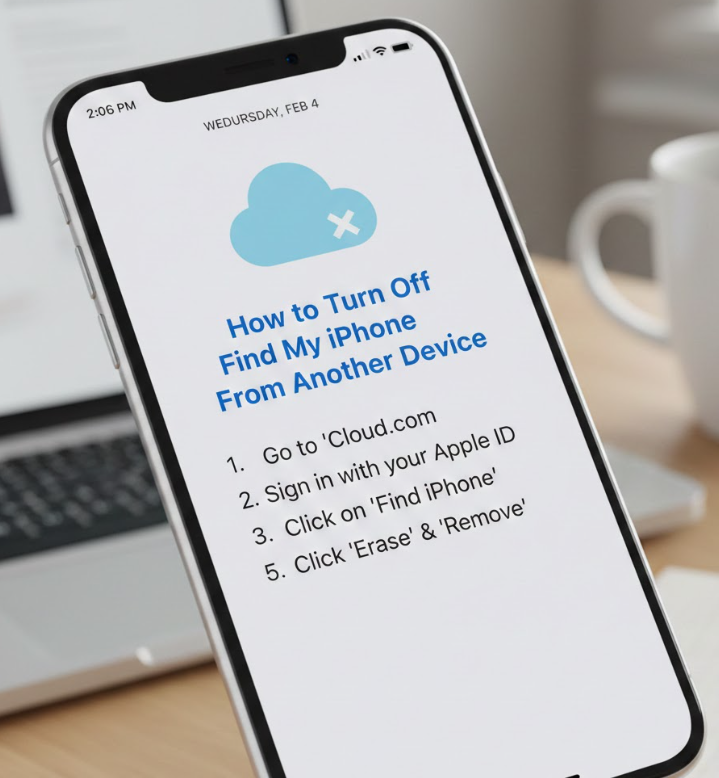
Sometimes you may not have your iPhone on hand but still need to disable Find My iPhone. This can be done through another iOS device logged into the same Apple ID.
Steps to Turn Off Find My iPhone From Another Device
• Open the Find My App on a Secondary Device
Use another iPhone, iPad, or iPod logged into the same Apple ID. The app shows all devices linked to the account, allowing remote management.
• Select the Target Device
Tap on the iPhone you wish to remove. This displays device information, location, and available actions.
• Access Device Settings Within the App
Choose “Remove This Device” or “Turn Off Find My iPhone.” This prepares the device for deactivation.
• Authenticate With Apple ID
You must enter the Apple ID password associated with the device. This security step ensures unauthorized users cannot disable the feature.
• Confirm Deactivation
Apple will prompt confirmation to disable Find My iPhone. Confirming completes the process remotely.
• Verify Device Removal
Check your secondary device or iCloud account to ensure the iPhone is no longer listed as having Find My enabled.
Also Read:- How to Drive a Manual Car: A Complete Beginner-to-Expert Driving Guide
How to Turn Off Find My iPhone From Computer
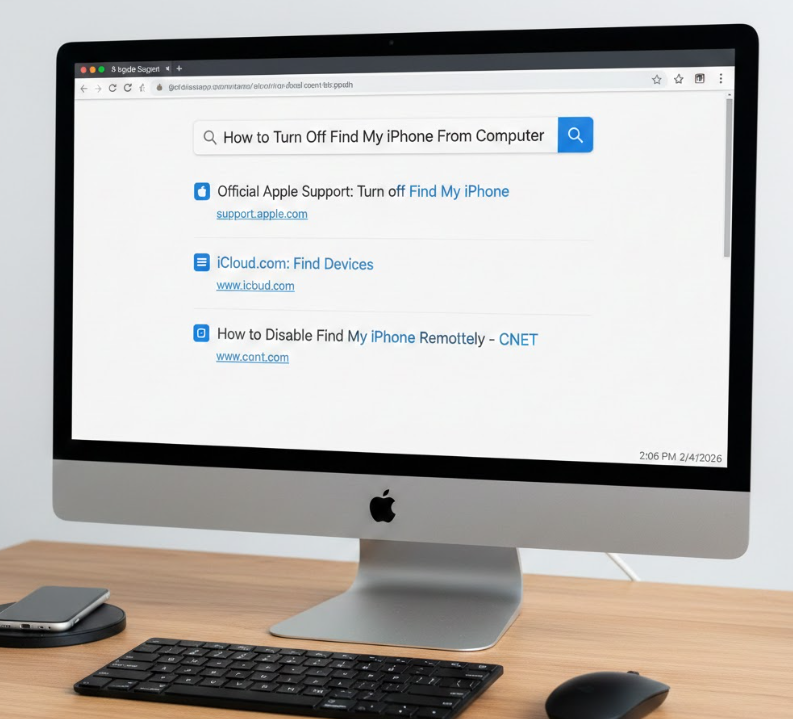
Deactivating Find My iPhone from a computer is especially useful when your iPhone is unavailable or if you prefer using a web interface.
Steps to Turn Off Find My iPhone From a Computer
• Open a Web Browser and Visit iCloud.com
Log in with your Apple ID credentials associated with the device.
• Navigate to Find iPhone
Select the “Find iPhone” icon to access all devices linked to your account.
• Select the Device to Deactivate
Click on “All Devices” and choose the iPhone you want to manage.
• Choose “Remove from Account”
This action turns off Find My iPhone and removes the device from your iCloud account.
• Enter Apple ID Password
Authentication is required to prevent unauthorized access and ensure only the owner can disable the feature.
• Verify the Device Is Removed
After completion, refresh the account to confirm the iPhone is no longer listed. This ensures it is ready for resale, repair, or other purposes.
Also Read:- How to Clean a Carpet: A Complete Practical Guide for Every Home
How to Turn Off Find My iPhone on iCloud
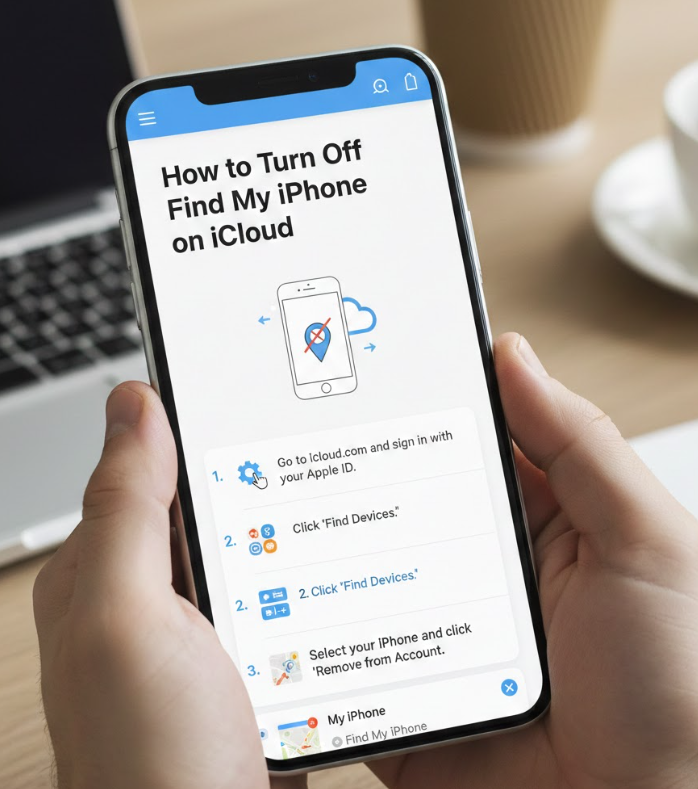
iCloud provides a centralized platform to manage all Apple devices. Disabling Find My iPhone directly through iCloud is secure and official.
Steps to Turn Off Find My iPhone on iCloud
• Log in to iCloud.com
Enter your Apple ID and password on any device with a web browser.
• Access “Find iPhone”
Click the icon to access device management and locate your iPhone.
• Select Your iPhone
From the device list, choose the target iPhone to modify settings.
• Click “Erase iPhone” If Necessary
For resale or troubleshooting, you may need to erase content. This automatically prompts Find My iPhone deactivation.
• Confirm Removal After Erasing
Once erased, select “Remove from Account” to fully deactivate Find My iPhone.
• Verify Changes Across Devices
Check other Apple devices or iCloud account to ensure the iPhone no longer shows as having Find My enabled.
Also Read:- How to Make Almond Milk: From Classic to Yogurt, Ice Cream & Creamer
How to Turn Off Find My iPhone Without Phone
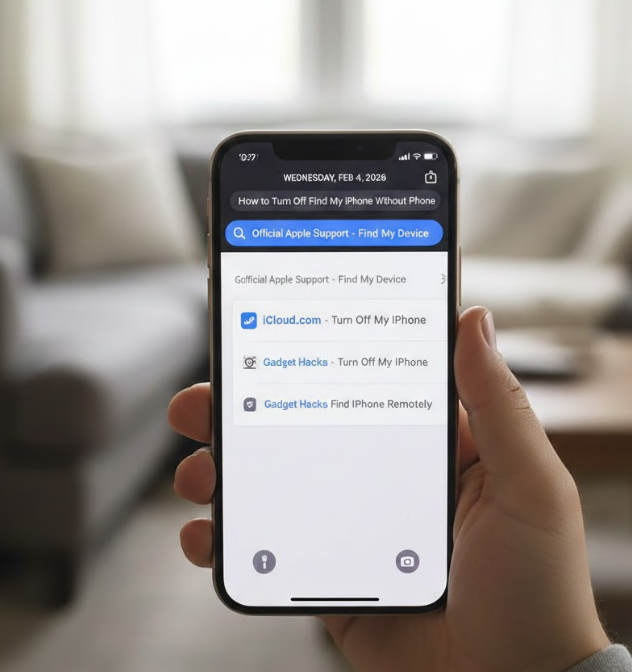
In certain cases, the iPhone may be lost, stolen, or physically inaccessible. You can still turn off Find My iPhone through iCloud or Apple ID management.
Steps to Turn Off Find My iPhone Without the Phone
• Use a Web Browser to Log Into iCloud
Navigate to iCloud.com and sign in using the Apple ID tied to the missing device.
• Access Find iPhone Feature
Click “Find iPhone” to view all devices linked to your account.
• Select the Lost or Missing iPhone
Choose the device even if it is offline, as remote removal is still possible.
• Erase iPhone Remotely
Erasing the device ensures all personal data is removed and triggers prompts to disable Find My iPhone.
• Remove Device From Account
After erasing, select “Remove from Account” to fully disable Find My iPhone.
• Confirm Deactivation Across Devices
Check your Apple ID account on another device or iCloud to verify that Find My iPhone is no longer active.
Also Read:- How to Find Limiting Reactant: Complete Guide for Chemistry Students
Common Problems and Troubleshooting When Turning Off Find My iPhone
Even following these methods, users may encounter difficulties. Common issues include:
• Forgotten Apple ID password
• Device offline or not connected to the internet
• Two-factor authentication errors
• iOS software bugs
• Device linked to another Apple ID
• Temporary server issues on iCloud
These can usually be resolved by resetting your Apple ID password, ensuring proper internet connection, updating iOS, or contacting Apple Support.
Also Read:- How to Make Simple Syrup: The Ultimate Guide
Conclusion: Turning Off Find My iPhone Safely
Knowing how to turn off Find My iPhone is crucial for device management, resale, repair, or troubleshooting. Whether you’re using another device, a computer, iCloud, or handling the situation without your phone, Apple’s official methods ensure security, privacy, and accuracy. Following step-by-step instructions protects your Apple ID, prevents unauthorized access, and guarantees your device is ready for its next purpose. Always verify that the device has been removed to avoid complications with activation locks.
FAQs
Can I turn off Find My iPhone without the password?
No, Apple requires authentication to prevent unauthorized access.
Will turning off Find My iPhone erase my data?
It does not erase data unless you choose the “Erase iPhone” option.
Is it safe to turn off Find My iPhone before selling?
Yes, deactivation is required to allow the new owner to use the device.
Can I turn off Find My iPhone remotely?
Yes, through iCloud or another device logged into your Apple ID.
For More Info Visit Hola-Fly