Andrew
Scanning documents, photos, or QR codes on your iPhone has become a vital skill for both personal and professional life. Whether you are digitizing important paperwork, sharing receipts, or quickly accessing web links through QR codes, knowing how to scan on iPhone efficiently saves time and ensures accuracy. iPhones come equipped with powerful native tools such as the Notes app, Camera, and Files app that make scanning intuitive, high-quality, and secure.
This article provides a detailed guide on scanning with different iPhone models including iPhone 13, 14, 15, 16, as well as scanning QR codes. You will learn not only the step-by-step process but also expert tips to ensure your scans are clear, properly formatted, and easy to share. From beginners to seasoned iPhone users, this guide enhances productivity and leverages the iPhone’s full scanning capabilities.
How to Scan on iPhone 13
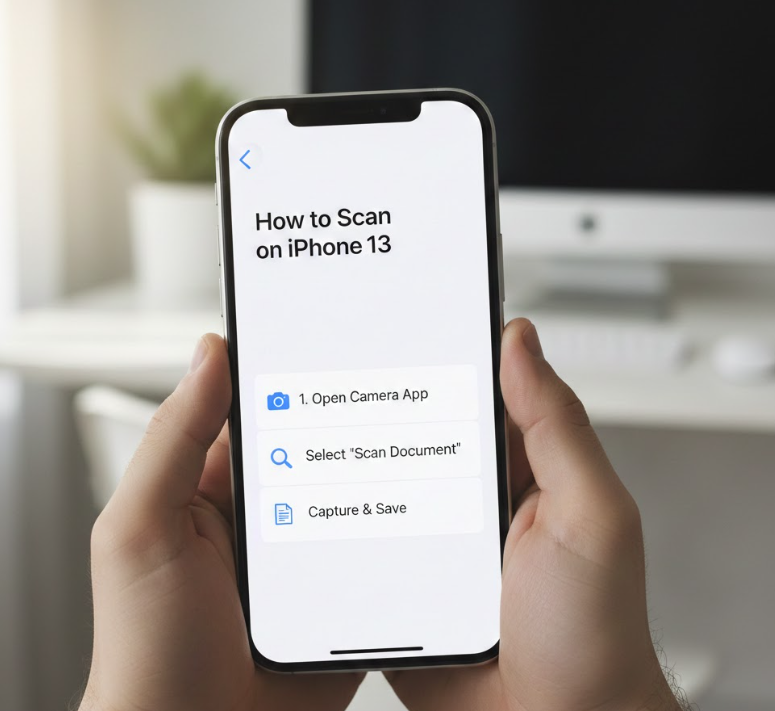
The iPhone 13, with its upgraded camera system and software enhancements, makes scanning documents and images seamless. You can use the built-in Notes app, Files app, or third-party apps for advanced features. Scanning on iPhone 13 is intuitive but requires understanding the proper workflow to ensure clarity, alignment, and efficiency.
Key Points Explained
• Using the Notes app to scan
The Notes app allows you to create a new note and use the “Scan Documents” feature. The iPhone 13 automatically detects edges, adjusts lighting, and captures the document. You can save the scan as a PDF or image for easy sharing.
• Ensuring proper lighting
Good lighting is crucial for legible scans. Natural or bright indoor lighting reduces shadows and glare. iPhone 13’s camera intelligently adjusts exposure, but proper lighting ensures the text and images are clear.
• Aligning the document
Place the document on a flat surface and align the camera directly above it. The iPhone 13 will detect edges and crop automatically, preventing distorted scans. Holding the phone steady prevents blurry results.
• Editing and adjusting scans
After scanning, you can adjust the color, rotate, or crop the document. The Notes app allows you to apply filters like grayscale, black & white, or color to enhance readability.
• Saving and sharing scans
Once scanned, you can save to Notes, Files, iCloud, or share via email and messaging apps. iPhone 13’s integration with iOS allows seamless sharing across Apple devices.
• Using third-party apps for advanced scanning
Apps like Adobe Scan or Microsoft Lens offer OCR (Optical Character Recognition) and text extraction. These apps are especially useful if you frequently scan documents for professional use.
Also Read:- How to Block Someone on TikTok: Comprehensive Guide
How to Scan on iPhone 14
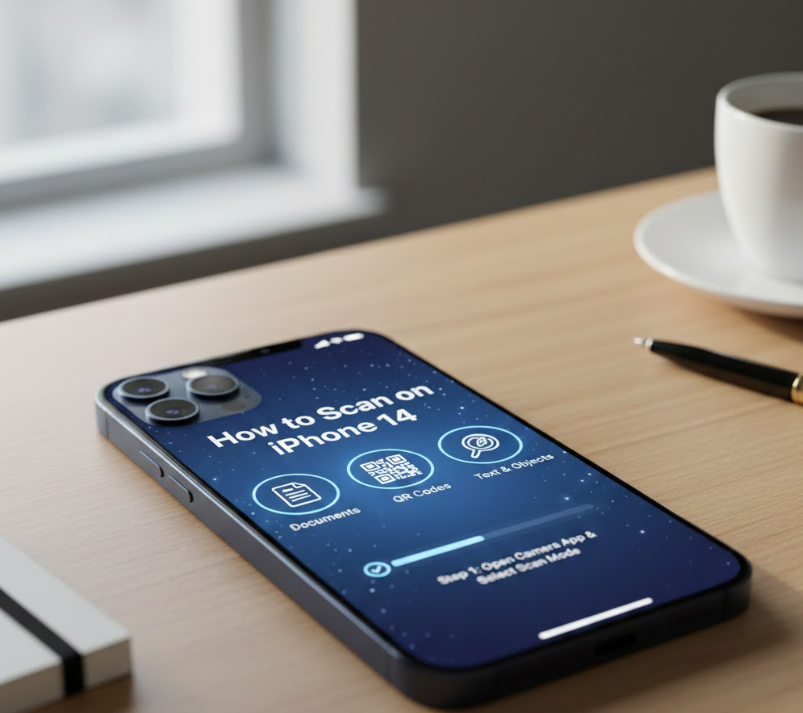
The iPhone 14 introduces further camera enhancements and improved iOS features, making scanning faster and more accurate. Its computational photography helps detect edges, correct perspective, and enhance readability. Learning to scan effectively ensures that your documents are clear and usable.
Key Points Explained
• Native scanning via the Camera app
iPhone 14 allows document scanning directly through the Camera app. The document is automatically detected and cropped. This method is fast for quick scanning without opening additional apps.
• Using the Files app to scan
Files app scanning stores documents in organized folders. This is ideal for business users who require structured storage. You can convert scans to PDF and sync with cloud services.
• Automatic edge detection and correction
The iPhone 14’s intelligent edge detection automatically frames your document. Perspective correction reduces distortion, making scanned text legible even if the phone isn’t perfectly aligned.
• Adjusting filters for clarity
After scanning, you can apply filters to improve contrast or convert the document to black and white. These adjustments are essential for documents with faint text or colored backgrounds.
• Exporting and sharing options
Scans can be exported to email, cloud storage, or other apps. Sharing options integrate seamlessly with iCloud, Dropbox, or Google Drive.
• Tips for high-quality scans
Avoid shadows, keep the lens clean, and ensure the document is flat. Regularly update iOS to benefit from improved scanning algorithms.
Also Read:- How to Cancel YouTube TV: Complete Guide
How to Scan on iPhone 15
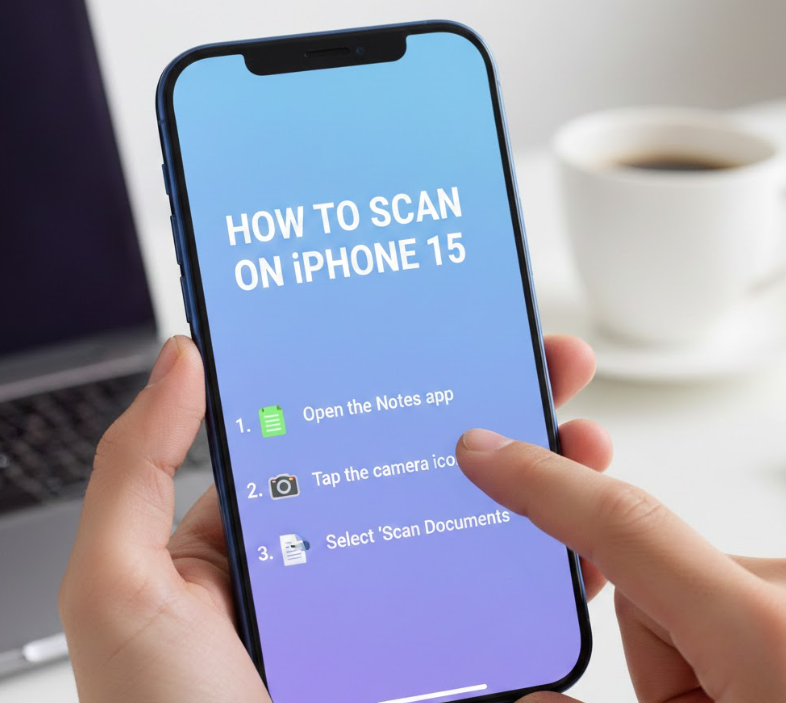
The iPhone 15, equipped with a refined camera system and AI-assisted scanning features, provides high precision in document capture. Users can scan almost any type of document, from receipts to ID cards, without additional hardware.
Key Points Explained
• Using Notes app with enhanced precision
Scan multiple pages into a single document. The iPhone 15 detects edges more accurately than previous models, reducing manual adjustments.
• Ensuring flat surfaces and steady hands
Proper hand stability and document placement ensure sharp scans. Using a table or solid surface improves the quality of edge detection.
• Leveraging automatic perspective correction
The iPhone 15 automatically straightens angled documents. This saves time and avoids the need for post-editing or manual cropping.
• Applying built-in filters
Filters enhance text visibility. Black & white mode is useful for contracts or receipts, while color mode preserves images or graphics.
• Organizing scans within the Files app
Create folders or tags for scanned documents. The Files app integrates with iCloud for cross-device accessibility.
• Third-party app integration
Scan directly into apps like Evernote or OneDrive for professional document management. OCR capabilities allow you to search text within scanned documents.
Also Read:- How to Turn Off Find My iPhone: Step-by-Step Guide
How to Scan on iPhone 16
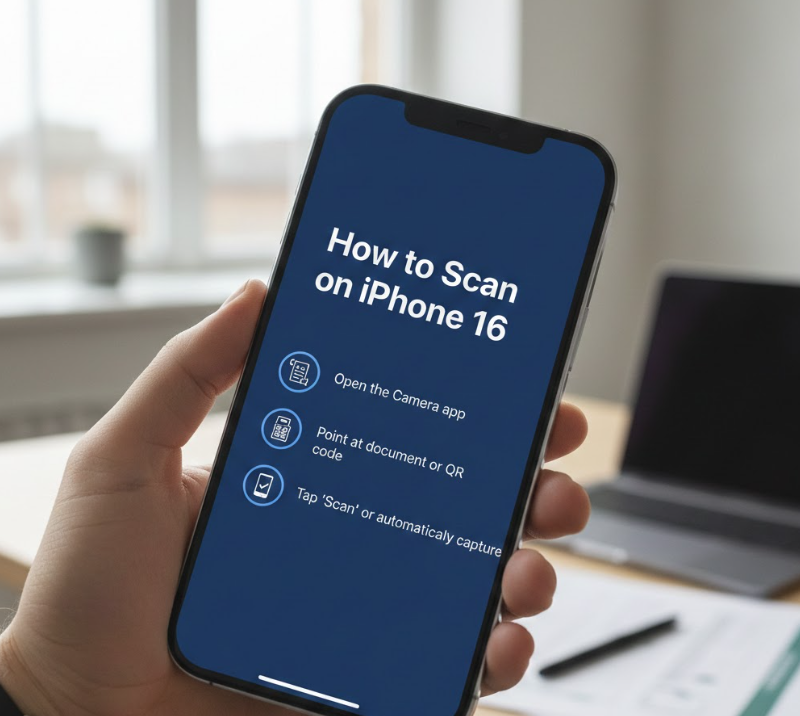
The iPhone 16 offers the latest advancements in scanning technology, including AI-assisted text recognition, improved edge detection, and faster processing. These improvements make scanning documents, receipts, and images effortless and highly accurate.
Key Points Explained
• AI-powered document recognition
The iPhone 16 recognizes text automatically and adjusts crop and lighting. This ensures that every scan is clean and readable without manual adjustments.
• Using Notes and Camera for scanning
Both apps support multi-page scans. Camera app scanning allows for instant capture, while Notes app offers organized storage and annotation options.
• Edge detection and perspective correction
iPhone 16 automatically identifies the boundaries of the document and corrects skewed angles. This makes even slightly crumpled papers readable.
• Filters and enhancements for clarity
You can convert scans to grayscale, black & white, or leave them in color. These filters enhance legibility and make printing or sharing documents easier.
• Sharing and saving options
Save scans to iCloud, email, or messaging apps. Integration with cloud storage services allows access from any device, ensuring seamless workflow.
• Best practices for professional scanning
Keep documents flat, ensure consistent lighting, and avoid reflective surfaces. Regularly update iOS to take advantage of the latest scanning improvements.
Also Read:- How to Drive a Manual Car: A Complete Beginner-to-Expert Driving Guide
How to Scan on iPhone QR Code
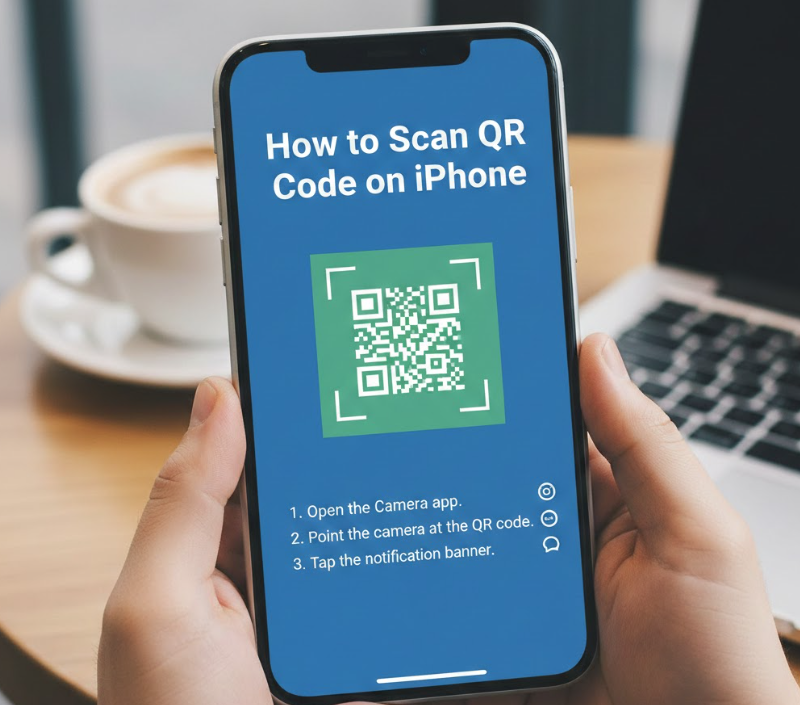
Scanning QR codes on iPhone is simple and built into the native Camera app. QR codes are widely used for payments, web links, event check-ins, and product information. Understanding the scanning process ensures you quickly access the content encoded in the QR code.
Key Points Explained
• Using the native Camera app
Open the Camera app and point it at the QR code. The iPhone automatically detects the code and shows a notification to open the link.
• Ensuring proper lighting
Adequate lighting improves code recognition. Dim or reflective surfaces may require adjusting angles or brightness.
• Keeping the QR code within frame
Hold the iPhone steady and ensure the QR code fills most of the camera frame. Avoid tilting to ensure accurate scanning.
• Opening the scanned link
Once detected, tap the notification to open the webpage, app, or payment system. iOS automatically handles the QR code format.
• Saving QR codes for later
You can take a photo of QR codes to access them later. Apps like Notes or Wallet allow organized storage of scanned QR codes.
• Security and safety tips
Only scan QR codes from trusted sources. Malicious codes can lead to phishing websites or unwanted downloads.
Also Read:- How to Clean a Carpet: A Complete Practical Guide for Every Home
Conclusion
Learning how to scan on iPhone is now easier than ever. From iPhone 13 to 16, every model offers intuitive tools for scanning documents, receipts, and QR codes. By using native apps like Notes and Camera or leveraging third-party solutions, you can ensure high-quality, professional scans at home or on the go. Proper lighting, flat surfaces, and post-scan adjustments guarantee clarity and efficiency.
Whether for personal organization or professional needs, scanning on iPhone simplifies your workflow while maintaining accuracy and security.
FAQs
Can I scan multi-page documents on iPhone?
Yes, Notes app allows multi-page scanning and saves them as a single PDF file.
Do I need a third-party app to scan documents?
Not necessarily. iPhone’s Camera and Notes apps are sufficient for most scanning tasks, though third-party apps offer OCR and advanced features.
How do I scan a QR code safely?
Always ensure the QR code is from a trusted source and verify the link before opening.
Which iPhone model scans the best?
iPhone 16 provides the most advanced AI-assisted scanning features, but iPhone 13, 14, and 15 are also highly capable
For More Info Visit Hola-Fly