Andrew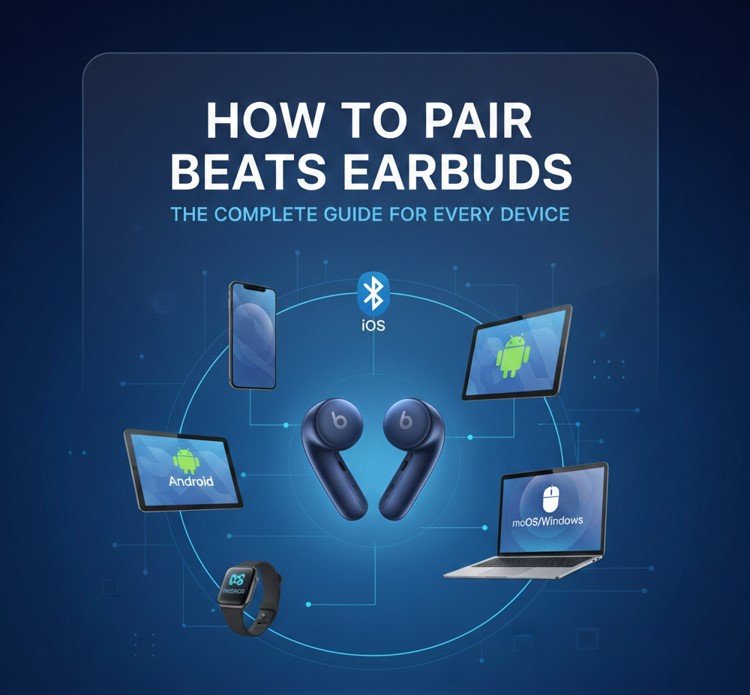
Knowing how to pair Beats earbuds correctly saves time, prevents connection issues, and ensures you get the best audio experience across your devices. Whether you’re pairing Beats to an iPhone, Android phone, laptop, Chromebook, Fire tablet, or a new device entirely, the steps are simple—when you know the right sequence.
Beats earbuds (including Beats Studio Buds, Beats Fit Pro, and Beats Studio Buds+) use Bluetooth technology and, on Apple devices, benefit from Apple’s seamless pairing features. According to Bluetooth SIG data, pairing failures are among the top three causes of wireless audio returns, often due to missed steps or device conflicts. This guide explains how to pair Beats earbuds across platforms, troubleshoot common problems, and keep connections stable.
Before You Pair: What to Do First (Universal Prep)
Before pairing to any device, complete these basics to avoid 90% of connection problems:
- Charge the earbuds and case to at least 20–30%.
- Turn Bluetooth on for the target device.
- Move other nearby Bluetooth devices away.
- Remove the earbuds from previous active connections if needed.
- Keep the earbuds within 1–2 feet of the device during pairing.
These steps apply to all Beats earbuds models.
Also Read:- How to Measure TV Size: The Complete, Accurate Buyer’s Guide
How to Pair Beats Earbuds to iPhone

Definition and Apple Ecosystem Advantage
Pairing Beats earbuds to an iPhone is the fastest method thanks to Apple’s built-in pairing interface and iCloud syncing.
iPhone Pairing Steps Explained
• Open the Charging Case Near the iPhone
With Bluetooth enabled, open the Beats case near your unlocked iPhone. A pairing animation should appear automatically within seconds.
• Tap “Connect” on the Screen Prompt
Follow the on-screen instructions. The earbuds pair instantly and sync to your Apple ID.
• Automatic iCloud Syncing
Once paired, the earbuds also connect to your iPad, Mac, and Apple Watch using the same Apple ID.
• Control Customization in Settings
Go to Settings → Bluetooth → Beats to adjust press controls, noise cancellation, and transparency (if supported).
• Firmware Updates
Updates install automatically on iOS, improving stability and battery performance.
• Reconnection Behavior
The earbuds reconnect automatically whenever you open the case near your iPhone.
Also Read:- How to Ice Skate: A Complete Beginner-to-Advanced Guide
How to Pair Beats Earbuds to Android Phone

Definition and Cross-Platform Compatibility
Beats earbuds fully support Android via standard Bluetooth and the Beats app.
Android Pairing Process
• Install the Beats App (Recommended)
Download the Beats app from Google Play for firmware updates and customization.
• Put Earbuds in Pairing Mode
With earbuds in the case, open the lid and press the system button until the LED flashes.
• Open Bluetooth Settings
Go to Settings → Bluetooth → Pair New Device.
• Select Your Beats Model
Tap the earbuds when they appear in the device list.
• Confirm Connection
Once paired, audio routes automatically to the earbuds.
• Enable App Features
Use the Beats app to manage controls, battery levels, and updates.
Also Read:- How to Do a Pull Up: The Complete Strength Guide for Beginners to Advanced
How to Pair Beats Earbuds to Android (Alternate Method)

Definition and Manual Bluetooth Pairing
This method works if the Beats app isn’t installed.
Manual Android Pairing Steps
• Activate Pairing Mode
Hold the case button until the light flashes white.
• Scan for Devices
In Bluetooth settings, tap Scan or Pair New Device.
• Select Beats Earbuds
Choose the correct model name.
• Approve Pairing Request
Confirm any prompts.
• Test Audio Playback
Play music or video to confirm sound.
• Save Device Priority
Ensure the earbuds are set as the default audio output.
Also Read:- How to Eat Crawfish: The Complete Step-by-Step Guide to Enjoying Crawfish Like a Pro
How to Pair Beats Earbuds to Laptop

Definition and Laptop Bluetooth Basics
Most laptops (Windows or macOS) pair with Beats earbuds using standard Bluetooth menus.
Laptop Pairing Instructions
• Enable Bluetooth on the Laptop
Check system settings to ensure Bluetooth is on.
• Enter Pairing Mode
Open the case and press the pairing button until the LED flashes.
• Add a Bluetooth Device
On Windows: Settings → Bluetooth & Devices → Add Device.
On Mac: System Settings → Bluetooth.
• Select Beats Earbuds
Choose from the available devices list.
• Set as Audio Output
Ensure the earbuds are selected for sound output.
• Test Microphone and Audio
Verify input/output for calls and meetings.
Also Read:- How to Get Water Out of Charging Port – Complete Safety Guide
How to Pair Beats Earbuds to Computer (Desktop PCs)

Definition and Hardware Requirements
Desktop computers require a Bluetooth adapter if not built-in.
Desktop Pairing Tips
• Check Bluetooth Capability
Use a USB Bluetooth adapter if needed.
• Driver Updates
Ensure Bluetooth drivers are current.
• Pairing Mode Activation
Hold the case button until flashing.
• Manual Device Selection
Select Beats from Bluetooth device list.
• Audio Device Configuration
Choose earbuds for both input and output.
• Stability Testing
Play audio for several minutes to confirm stability.
Also Read:- How to Clean Washer: The Complete, Expert Guide for a Fresh and Efficient Machine
How to Pair Beats Earbuds to Chromebook

Definition and ChromeOS Compatibility
Chromebooks support Bluetooth audio devices natively.
Chromebook Pairing Steps
• Open Quick Settings
Click the time in the bottom-right corner.
• Enable Bluetooth
Toggle Bluetooth on.
• Put Beats in Pairing Mode
Open case and hold the button.
• Select Beats from Device List
Click to connect.
• Confirm Audio Routing
Ensure media plays through earbuds.
• Reconnection Tips
Chromebooks remember paired devices for future use.
Also Read:- How to Feed Sourdough Starter: A Complete Guide for Beginners
How to Pair Beats Earbuds to Fire Tablet

Definition and Amazon Fire OS Setup
Fire tablets support Bluetooth but require manual pairing.
Fire Tablet Pairing Process
• Open Settings
Go to Settings → Bluetooth.
• Turn Bluetooth On
Wait for scanning to begin.
• Activate Pairing Mode
Hold the Beats case button.
• Select Beats Earbuds
Tap when they appear.
• Confirm Connection
Audio routes automatically.
• Media Playback Check
Test with music or video.
Also Read:- How to Draw Lips: A Complete Artistic Guide
How to Pair Beats Earbuds Pro (Beats Fit Pro & Studio Buds+)

Definition and Pro Model Features
Pro models include ANC, transparency, and spatial audio support.
Pro Model Pairing Notes
• Apple One-Tap Pairing
iPhone users benefit from instant pairing.
• Android App Support
Beats app unlocks features on Android.
• Noise Mode Configuration
Set ANC or transparency post-pairing.
• Firmware Importance
Keep firmware updated for best performance.
• Secure Fit Check
Proper fit ensures stable Bluetooth signal.
• Multi-Device Awareness
Switch devices by disconnecting first device manually.
Also Read:- How to Grow Garlic: The Complete Beginner-to-Harvest Guide for Healthy, Flavorful Bulbs
How to Pair Beats Earbuds to a New Device

Definition and Device Switching
Pairing to a new device requires clearing or bypassing previous connections.
New Device Pairing Strategy
• Disconnect from Old Device
Turn off Bluetooth on the previous device.
• Enter Pairing Mode Manually
Hold case button until flashing.
• Select New Device
Pair via Bluetooth settings.
• Confirm Successful Switch
Play audio to verify.
• Re-Enable Previous Device Later
Reconnect when needed.
• Avoid Simultaneous Connections
Beats earbuds connect to one device at a time.
Troubleshooting Common Pairing Issues
Definition and Problem Resolution
Most pairing failures stem from software conflicts or incomplete pairing mode activation.
Fixes That Work
• Reset Beats Earbuds
Hold the system button for 15 seconds until LED flashes red and white.
• Forget Device and Re-Pair
Remove Beats from Bluetooth list and pair again.
• Update Device Software
Outdated OS versions cause connection bugs.
• Reduce Wireless Interference
Move away from routers and other Bluetooth devices.
• Charge Fully
Low battery can prevent pairing.
• Test with Another Device
Helps isolate the issue.
Conclusion
Learning how to pair Beats earbuds correctly ensures reliable connections, better sound quality, and fewer interruptions—whether you’re using an iPhone, Android phone, laptop, Chromebook, Fire tablet, or a new device. By following the correct pairing steps, keeping firmware updated, and understanding device-specific differences, you can enjoy seamless wireless audio wherever you go.
FAQs
Why won’t my Beats earbuds enter pairing mode?
They may already be connected to another device. Turn off Bluetooth on nearby devices and try again.
Can Beats earbuds connect to two devices at once?
No, they support one active Bluetooth connection at a time.
Do Beats earbuds work better on iPhone than Android?
They work well on both, but iPhone offers tighter system integration.
For More Info Visit Hola-Fly