Andrew
YouTube TV has become a popular streaming option for live television, on-demand shows, and sports coverage. However, situations such as cost concerns, content preferences, or trial expiration may require you to stop your subscription. Knowing how to cancel YouTube TV ensures you avoid unexpected charges and manage your account effectively.
YouTube TV is designed to be flexible, allowing cancellation at any time without long-term contracts. Nevertheless, navigating account settings and subscription options can be confusing for some users. Whether using a desktop, mobile device, or iPhone app, understanding the cancellation process protects your billing and access.
This comprehensive guide covers how to cancel a YouTube TV subscription, including free trials, iPhone users, and full memberships. Each section provides step-by-step instructions, tips for troubleshooting, and expert advice on managing accounts to ensure a smooth experience. By following these strategies, you can confidently cancel your YouTube TV subscription while preserving data, history, and preferences if you return in the future.
How to Cancel YouTube TV Subscription
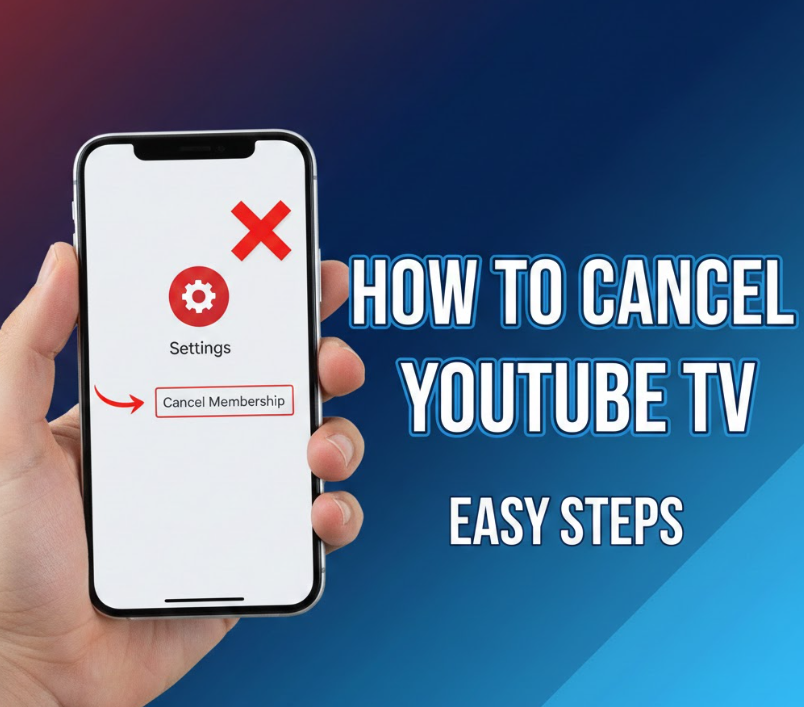
Cancelling a YouTube TV subscription is straightforward, but it requires navigating your account settings properly. Subscriptions are automatically billed monthly, so timely cancellation ensures you avoid unnecessary charges.
The process can be done on any web browser, making it convenient for desktop users. Understanding the account interface, confirmation steps, and potential retention offers helps you cancel efficiently without losing access until the end of the billing cycle.
Steps to Cancel Your YouTube TV Subscription
. Sign in to your YouTube TV account
Log in with the account that holds your subscription. Access to the correct profile ensures you modify the intended billing information.
. Go to account settings
Click on your profile picture, then select “Settings” followed by “Membership.” This section lists all active subscriptions and payment details.
. Select the membership you want to cancel
Click “Cancel membership” under the YouTube TV subscription. Carefully choosing the correct subscription prevents accidental cancellation of other Google services.
. Follow on-screen instructions
YouTube TV provides prompts asking for confirmation, reasons for leaving, and offers to pause or modify the plan. Completing each step ensures the cancellation request is registered.
. Confirm cancellation
You will receive a confirmation message stating the date your subscription will end. Keep a screenshot or email for future reference if any billing discrepancies arise.
. Monitor your account post-cancellation
Check your credit card or payment method for any remaining charges. Your subscription remains active until the end of the billing cycle, giving access to services until then.
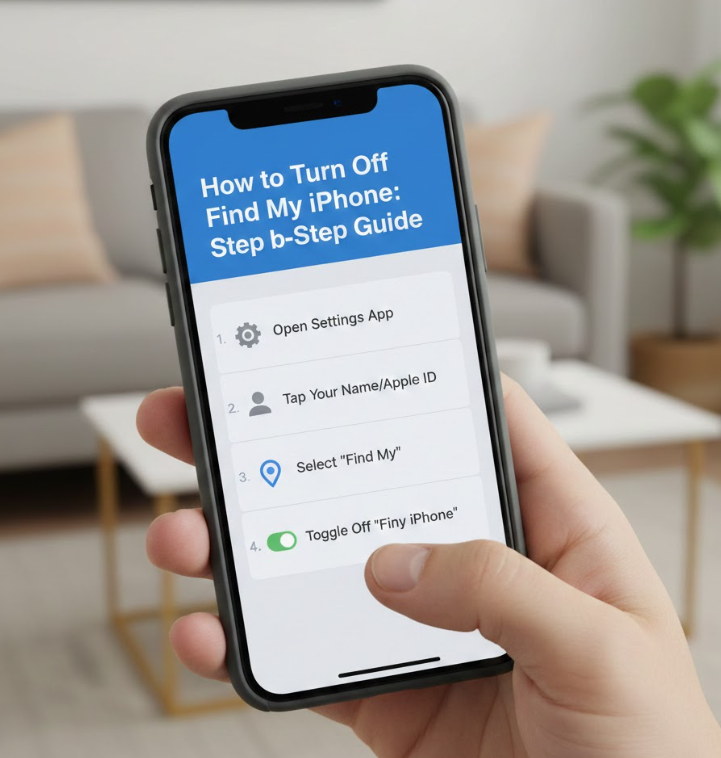
Also Read:- How to Turn Off Find My iPhone: Step-by-Step Guide
How to Cancel YouTube TV Free Trial
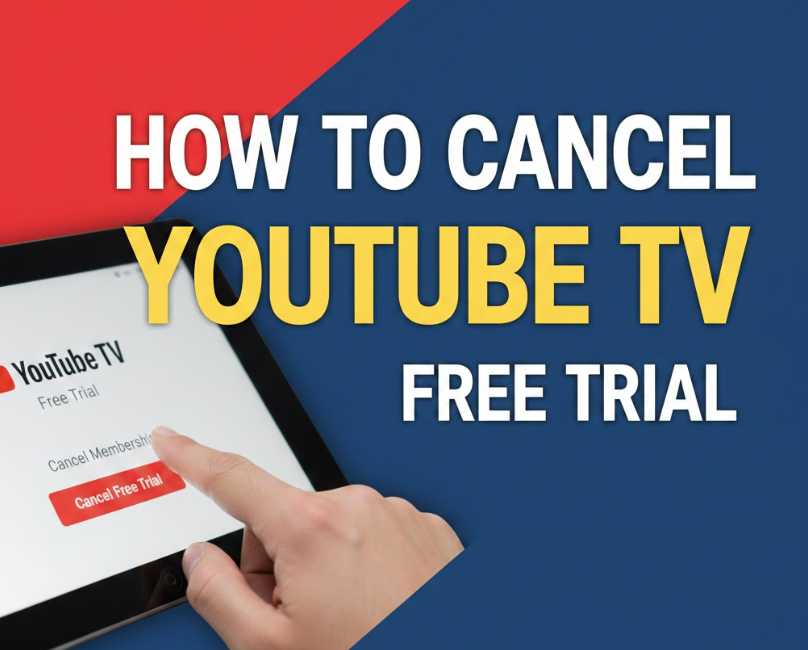
YouTube TV offers a free trial for new users, allowing full access for a limited period. Cancelling during the trial period ensures you avoid automatic charges when the trial ends.
Free trial cancellation is slightly different because users often overlook billing prompts, leading to accidental paid subscriptions. Understanding the timeline, confirmation steps, and potential trial extensions prevents unexpected costs.
Steps to Cancel a Free Trial
. Sign in before trial expiration
Log into the YouTube TV account associated with the trial. Cancelling early ensures you stop auto-renewal before charges occur.
. Access membership settings
Click on your profile picture → “Settings” → “Membership.” The free trial will appear alongside your billing options.
. Select cancel trial
Click “Cancel membership” and confirm that you are cancelling a free trial, not a paid subscription.
. Follow cancellation prompts
YouTube TV may offer retention options, such as discounted plans or pausing the trial. Carefully review each prompt to ensure full cancellation.
. Confirm cancellation and record details
After completing steps, note the cancellation confirmation message and end date of the trial to prevent billing errors.
. Check your billing method
Even during a free trial, credit card details may be required. Ensure no charges appear in your account after cancellation.
Also Read:- How to Drive a Manual Car: A Complete Beginner-to-Expert Driving Guide
How to Cancel YouTube TV on iPhone
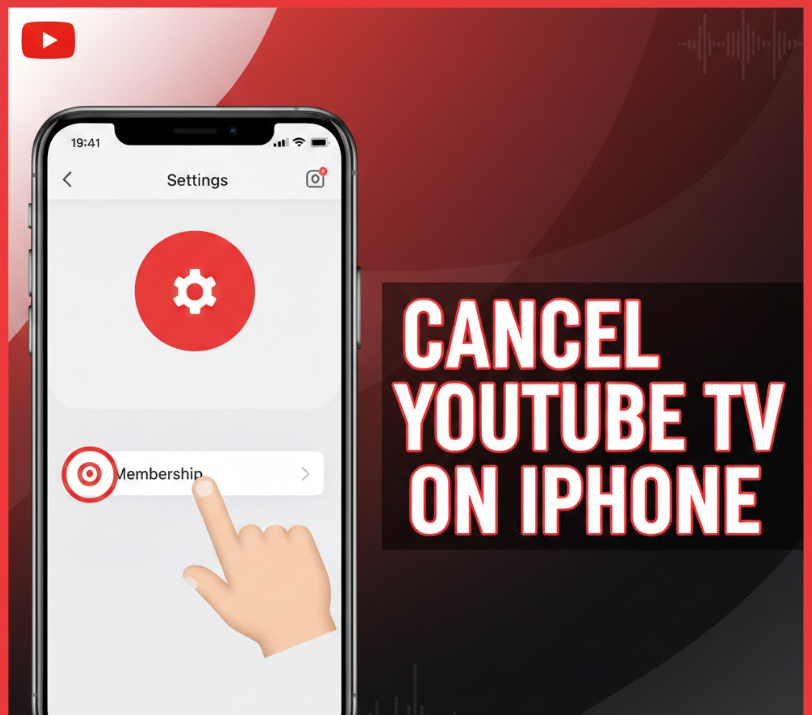
iPhone users often subscribe to YouTube TV through the iOS app or via Apple’s subscription services. Cancelling on an iPhone involves slightly different steps due to Apple’s billing integration.
It is crucial to cancel directly through Apple if the subscription was purchased via the App Store; otherwise, charges may continue even after cancelling in the YouTube TV app.
iPhone-Specific Cancellation Steps
. Open the Settings app
Tap your Apple ID at the top of the screen and navigate to “Subscriptions.” This area lists all active iOS subscriptions.
. Select YouTube TV subscription
Locate YouTube TV under active subscriptions. Selecting the correct subscription ensures you manage the proper billing account.
. Tap cancel subscription
Click “Cancel Subscription” to stop auto-renewal. Apple requires confirmation, so follow each prompt carefully to complete the process.
. Confirm cancellation details
Review the end date of the subscription. You will retain access until the current billing period expires.
. Check for multiple Apple IDs
If you have multiple Apple IDs, ensure you cancel the subscription associated with the correct ID to avoid continued charges.
. Monitor your email and payment method
Apple sends confirmation emails for cancellations. Keep records and verify that no unexpected charges appear on your credit card or Apple ID payment method.
Also Read:- How to Clean a Carpet: A Complete Practical Guide for Every Home
How to Cancel YouTube TV Membership
Cancelling a full YouTube TV membership ensures that your monthly billing stops and access ends at the appropriate time. Membership cancellation can be performed from desktop, mobile browser, or app, but steps may slightly vary depending on platform.
A full membership cancellation differs from pausing a subscription; you will lose access at the end of the billing cycle, and account history may be preserved for reactivation.
Steps for Cancelling Membership
. Sign in to your YouTube TV account
Access your account through a browser or mobile app to ensure the correct membership is managed.
. Navigate to Settings → Membership
This section provides details on active subscriptions, billing cycles, and options to modify or cancel membership.
. Select “Cancel membership”
Click the cancellation option. YouTube TV may provide alternatives such as pausing membership or switching plans.
. Provide reason for leaving (optional)
YouTube TV may ask for feedback. Providing input can help tailor future services but is not required for cancellation.
. Confirm cancellation
A confirmation message indicates the end date of access and cessation of billing. Save this confirmation for reference.
. Check post-cancellation access
Your membership remains active until the current billing cycle ends. Verify that your account no longer shows upcoming charges after the final billing date.
Also Read:- How to Make Almond Milk: From Classic to Yogurt, Ice Cream & Creamer
Conclusion
Knowing how to cancel YouTube TV is crucial for managing your subscriptions, avoiding unexpected charges, and controlling your streaming expenses. Whether cancelling a free trial, iPhone subscription, or full membership, following step-by-step instructions ensures a smooth and secure process.
By monitoring billing cycles, confirming cancellation details, and checking payment methods, users can confidently manage their accounts. These steps also make reactivation simple if you decide to return to YouTube TV in the future.
FAQs
Q: Can I cancel YouTube TV anytime?
Yes, YouTube TV allows cancellation at any time without penalty.
Q: Will I lose access immediately after cancelling?
No, your subscription remains active until the end of the current billing cycle.
Q: How do I cancel if I subscribed via Apple?
Use your iPhone settings → Apple ID → Subscriptions → Select YouTube TV → Cancel Subscription.
Q: Do I need to cancel both YouTube TV and YouTube app?
No, cancelling YouTube TV only stops the live streaming service; your regular YouTube account remains active
For More Info Visit Hola-Fly